
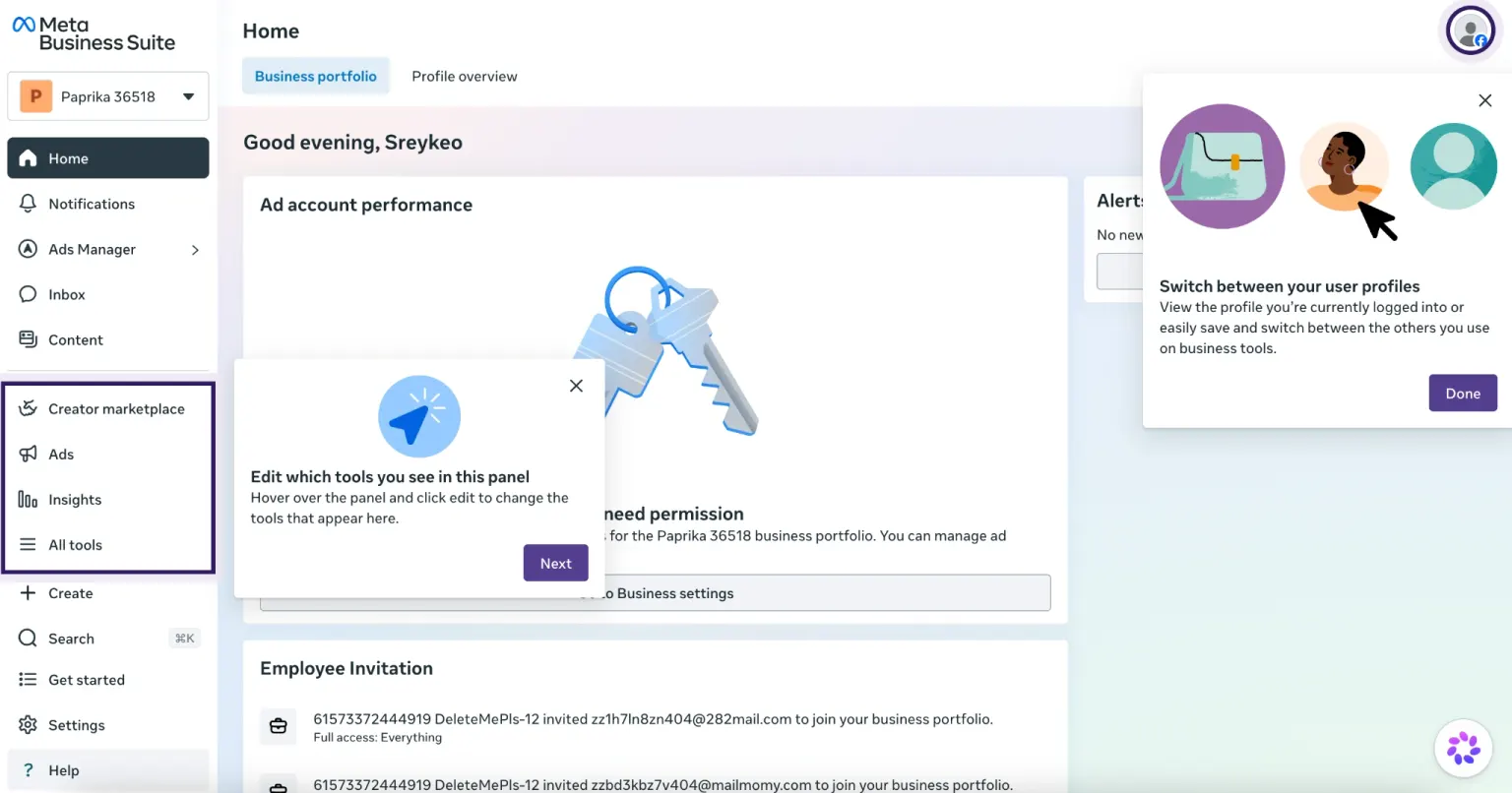
Facebook : Meta Business Manager (BM) — How to solve "You don't have permission" error after integrating a new BM
Facebook : Meta Business Manager (BM) — How to solve "You don't have permission" error after integrating a new BM?
Having trouble accessing a newly added account or Business Manager?
If you've just set up a new account or connected a new Business Manager (BM) and can't access it due to a permissions error, follow this guide to fix the issue quickly.
Why This Happens
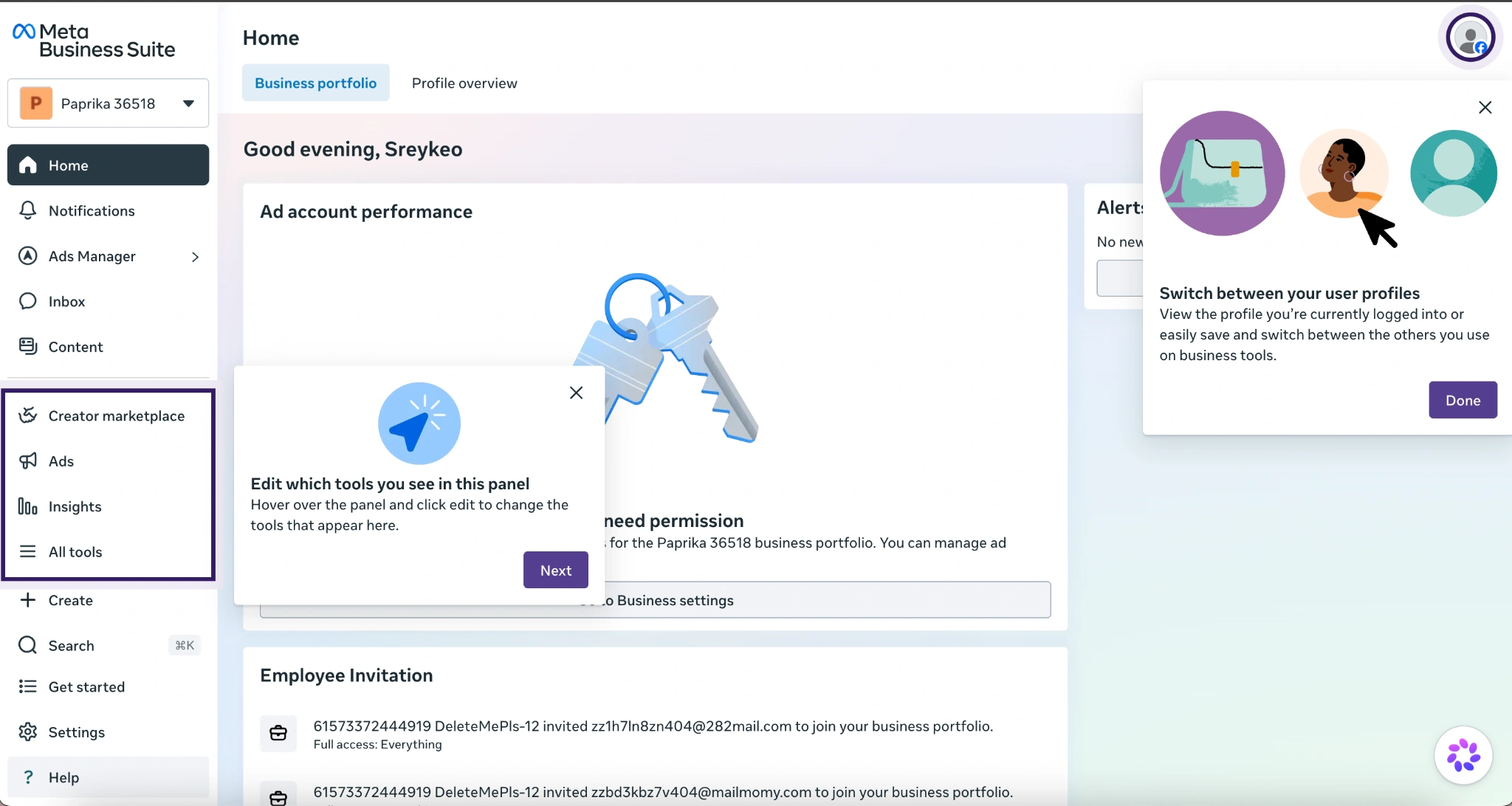
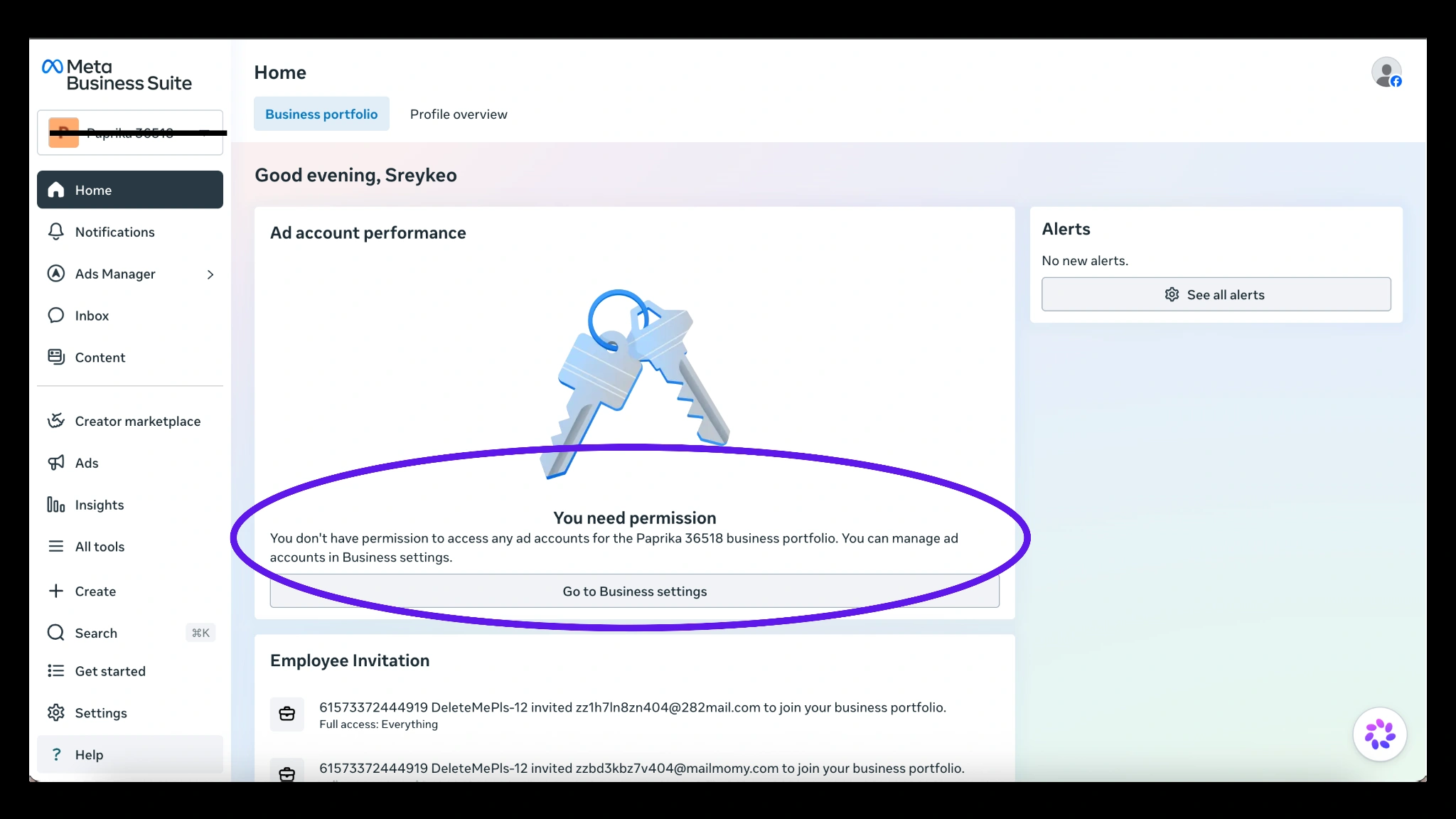
When you add a newly purchased Business Manager (BM) to your Meta account, it is common for it to have no ad accounts assigned. As a result, you may see the following message:
"You don't have permission to access any ad accounts."
This does not necessarily mean there is a problem with your Business Manager. In most cases, it simply means that your user account has not yet been granted access to the ad account.
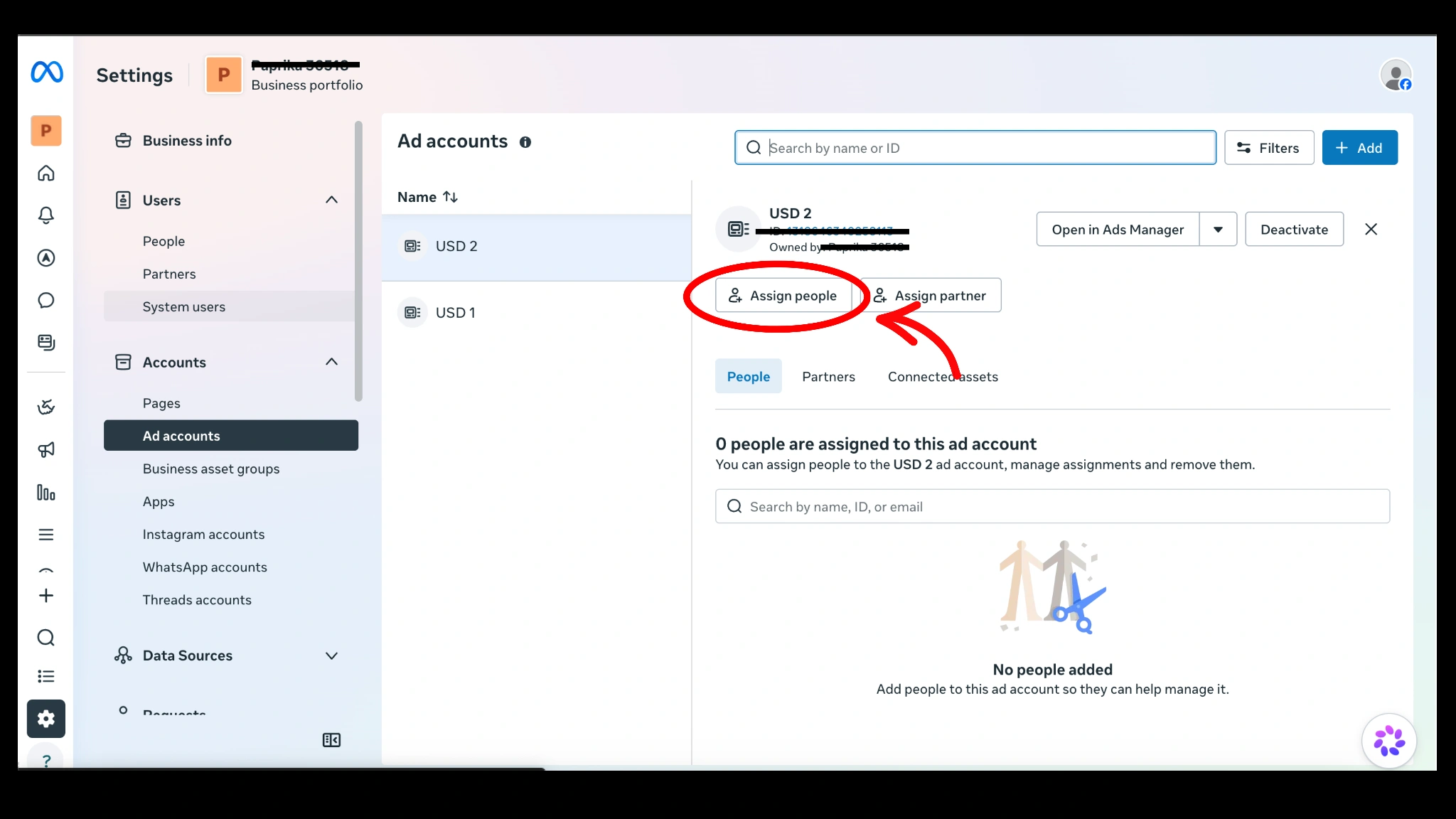
To resolve this, you can easily assign the necessary permissions to yourself by following the steps below.
Step 1
Go to your ads account → select the ads account you would like to access → press Assign people.
Step 2
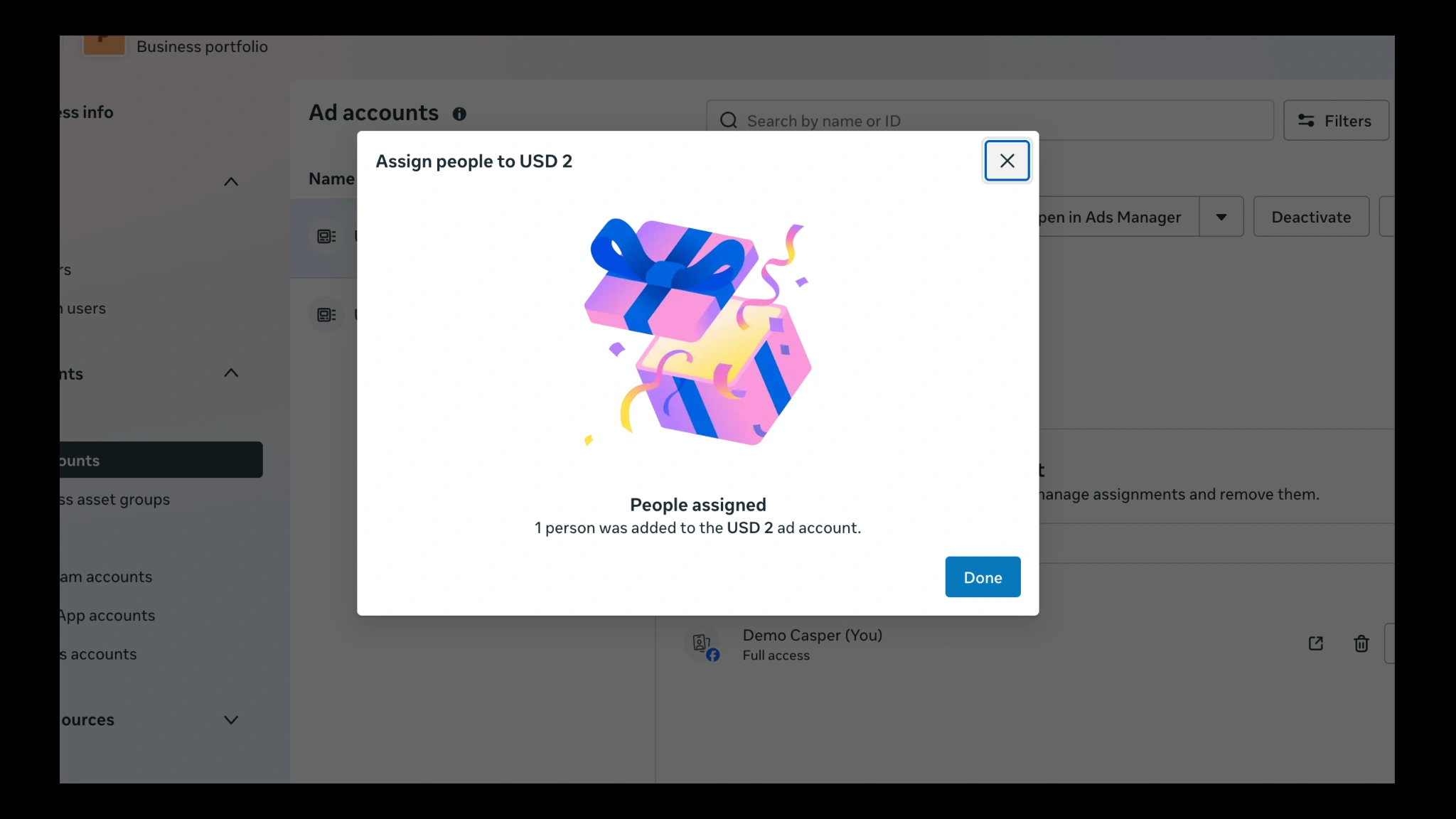
Assign yourself for permission (You) or any other people that have access to this BM.
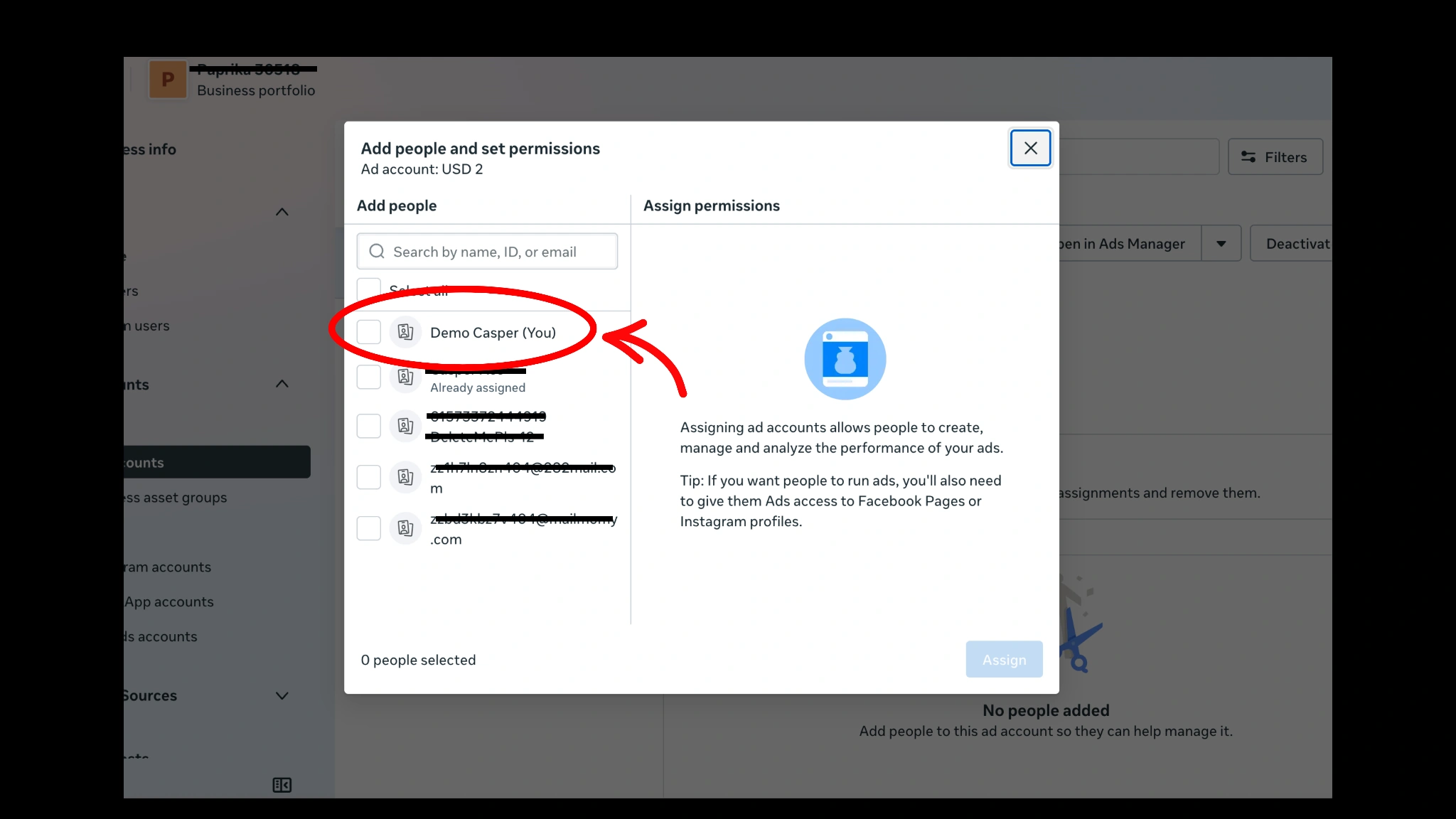
If you would like to share BM or ads account access to other admins, please refer to the related user guides.
Related guides: Facebook / Meta Business Manager (BM) — How to grant ads account access to your admin and How to share your Business Manager (BM).
Step 3
Assign yourself the permission (Practical access / Fully access).
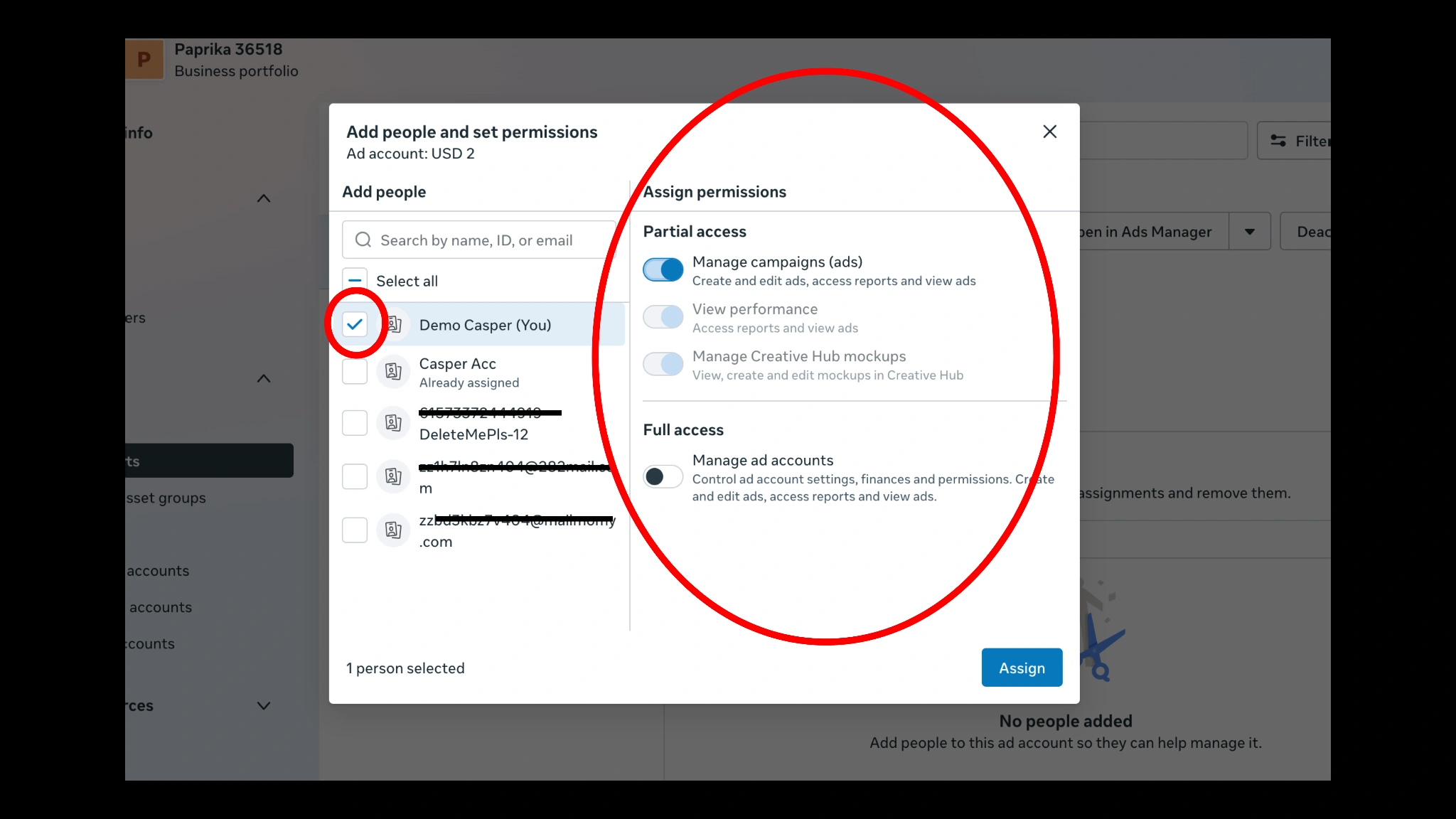
Successfully assigned — start setting your campaign with this Business Manager and ads account seamlessly.