
User Manual — How to Top-Ups and Payments
How to Top-Ups and Payments
Casperacc supports 3 payment methods:
- Wallet Credit
- THB payment via Stripe
- USDT payment via Ubit
Method 1: Pay with Wallet Credit
To use this payment method, you must top up your wallet first. Once the funds have been added, you can use your wallet credit to make purchases.
Steps to Top Up Your Wallet
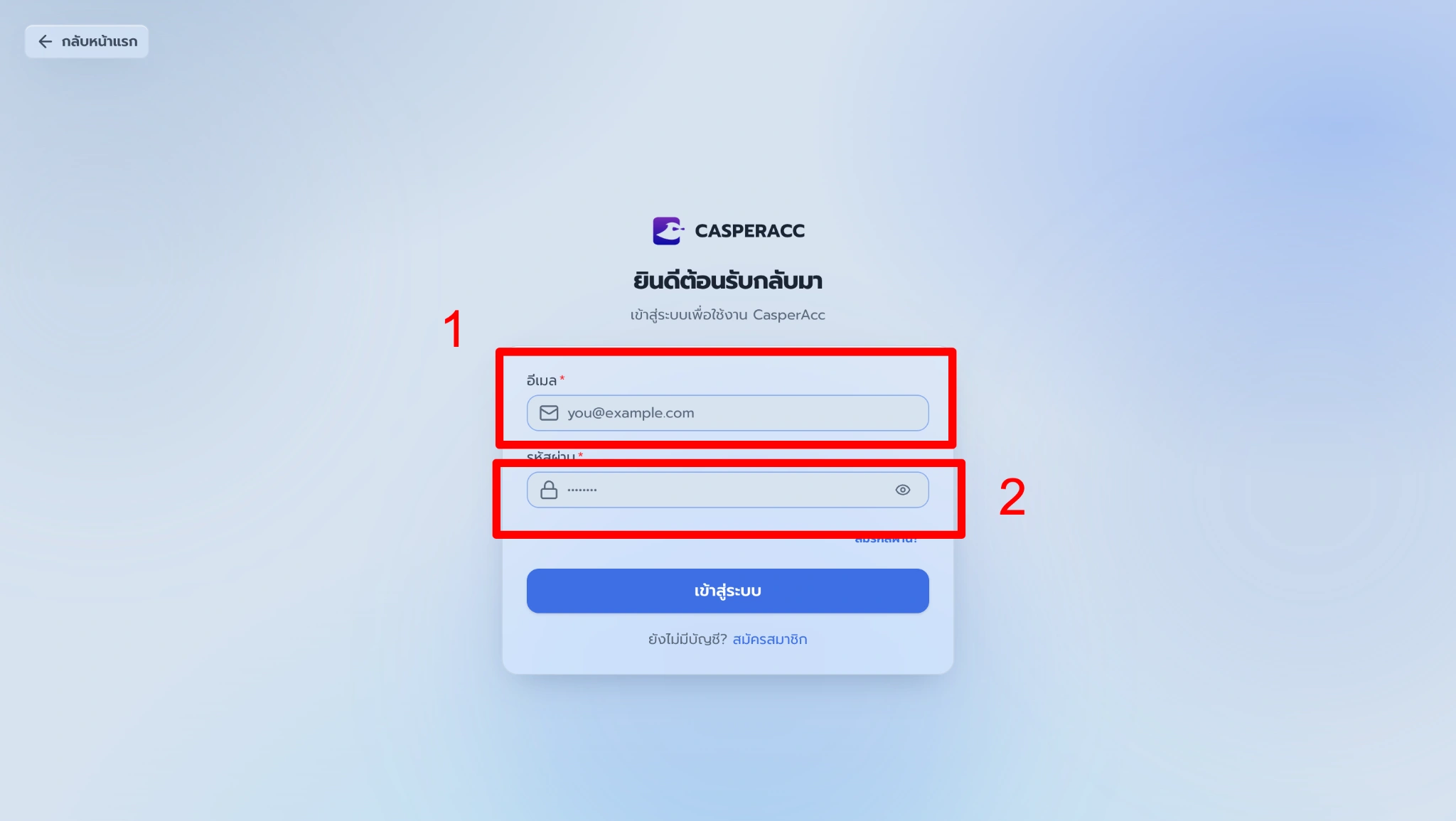
1.1 — Log in by entering your account details.
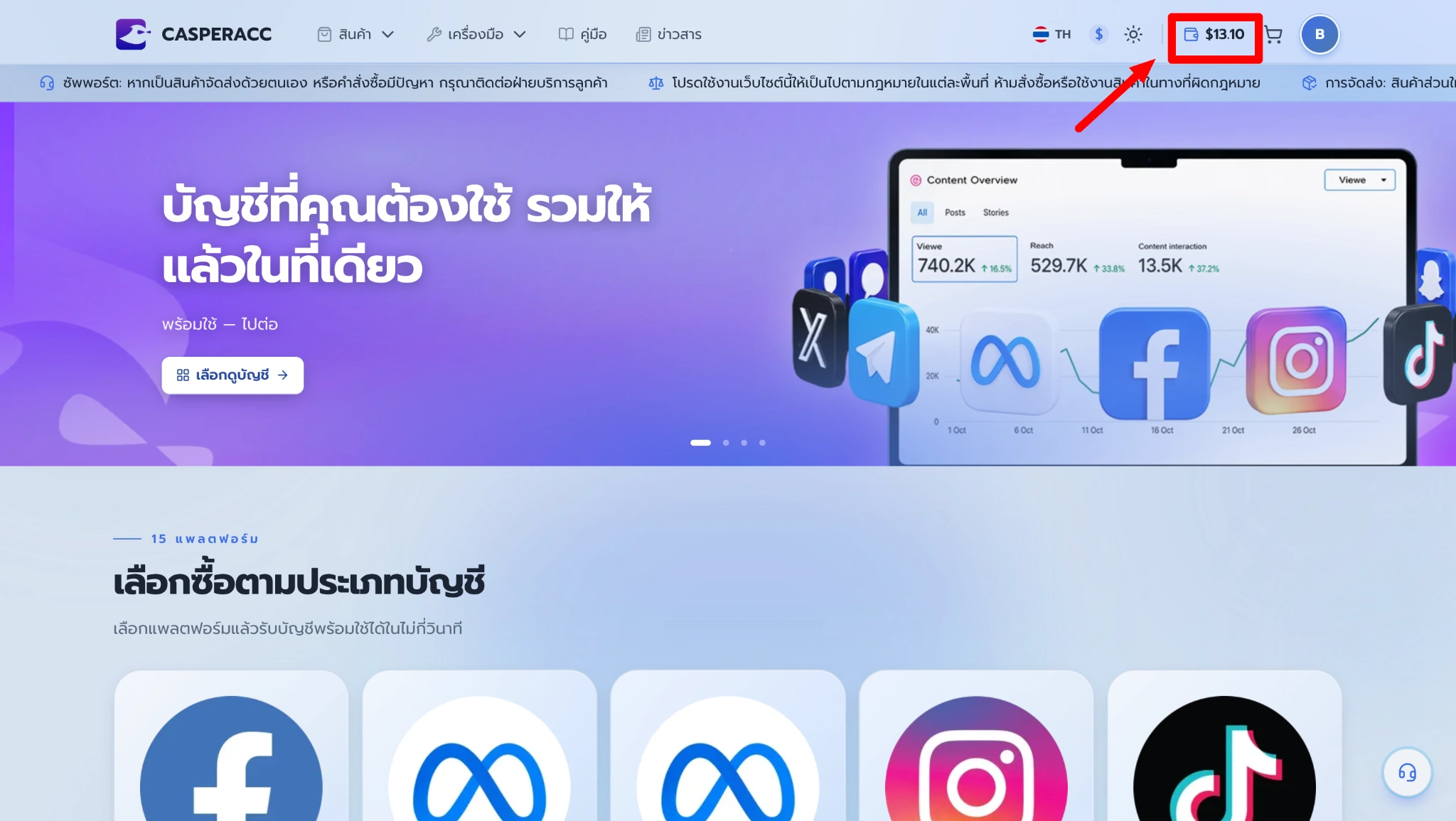
1.2 — Click the wallet icon. Once logged in, click the wallet icon to open the Top-Up page.
1.3 — Select a package. Choose the package that best suits your needs.
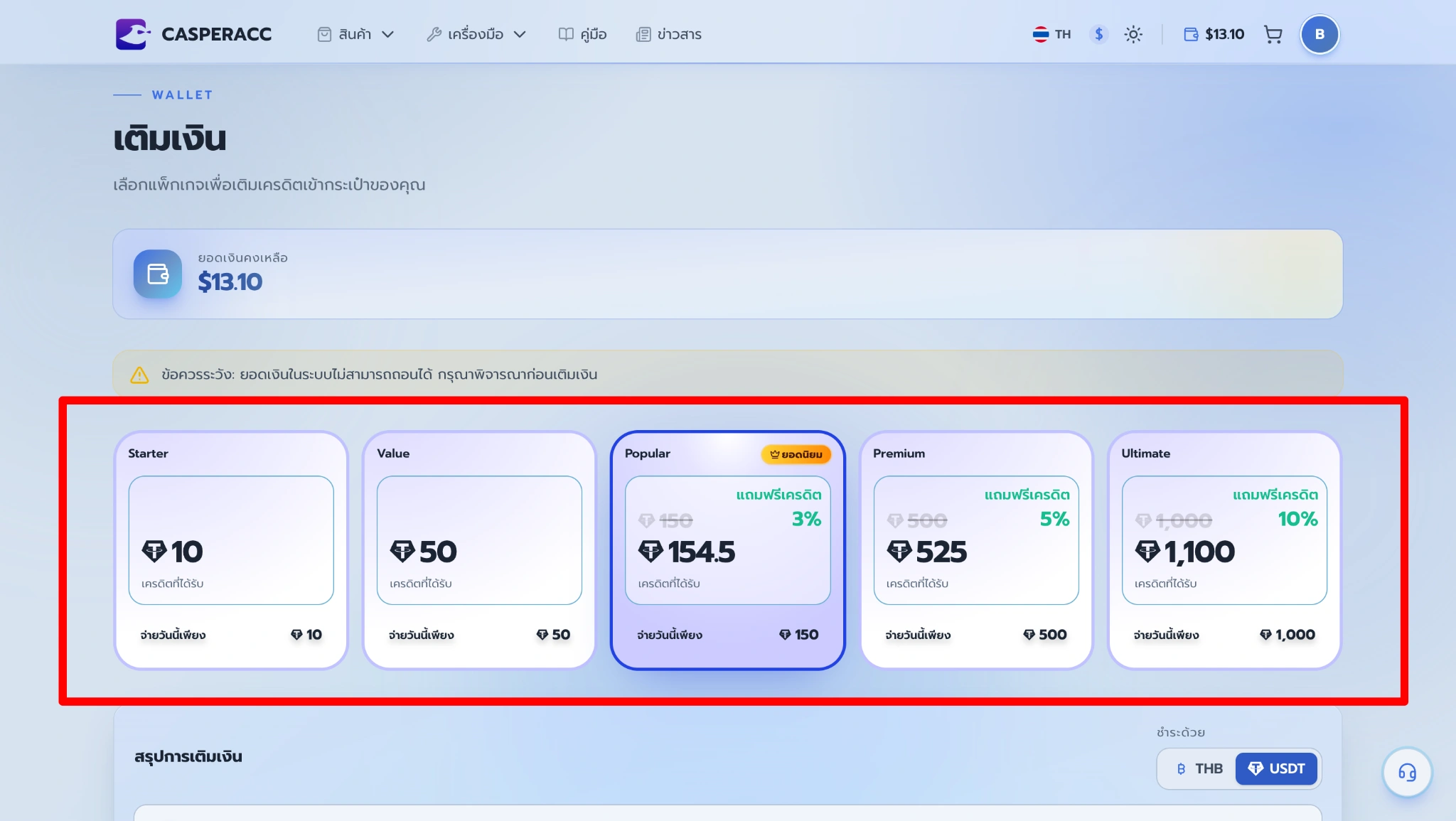
At this step, you can also select your preferred payment currency.
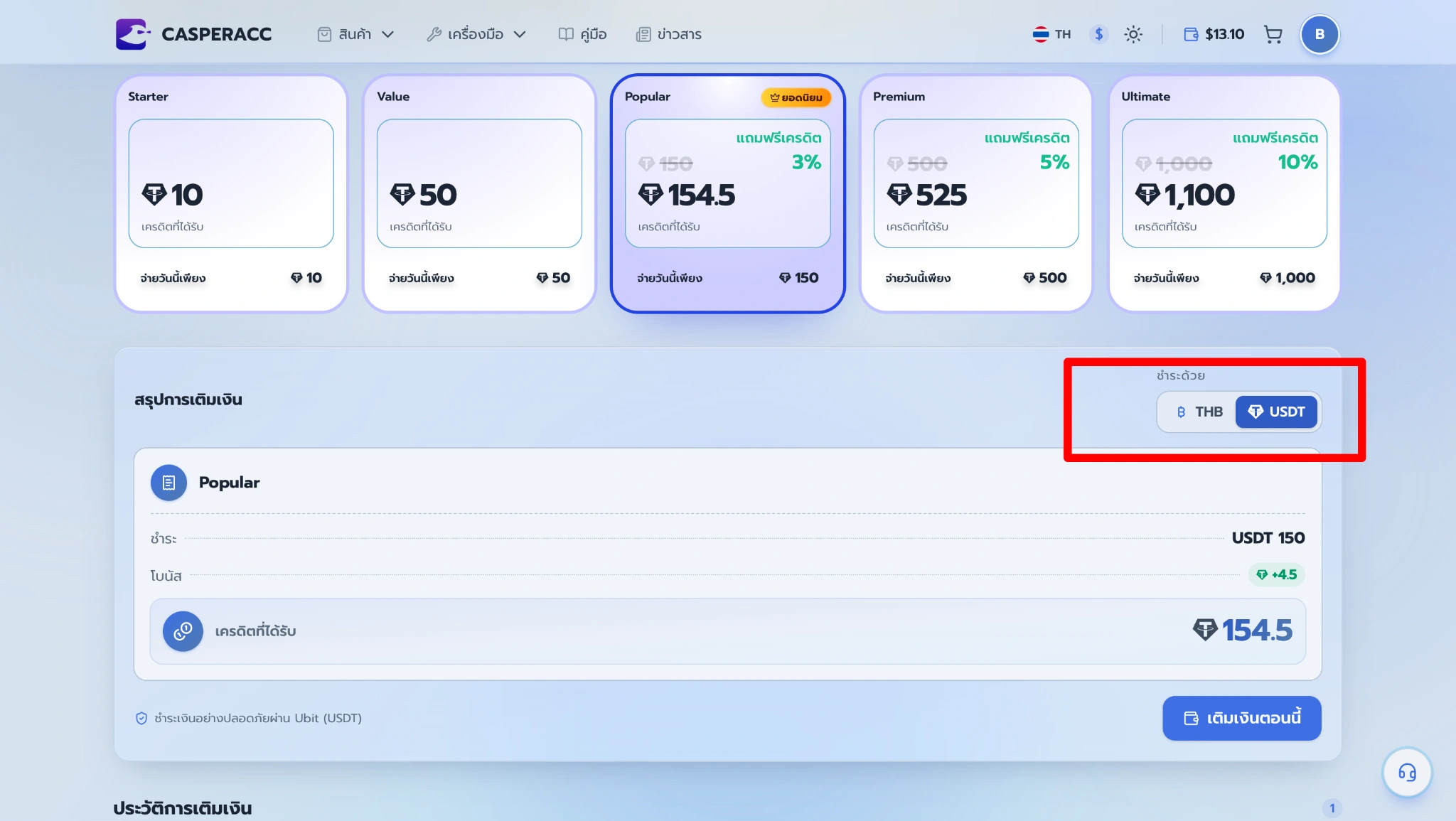
1.4 — Review the details. Once you have selected your package and payment currency, click Top-Up Now.
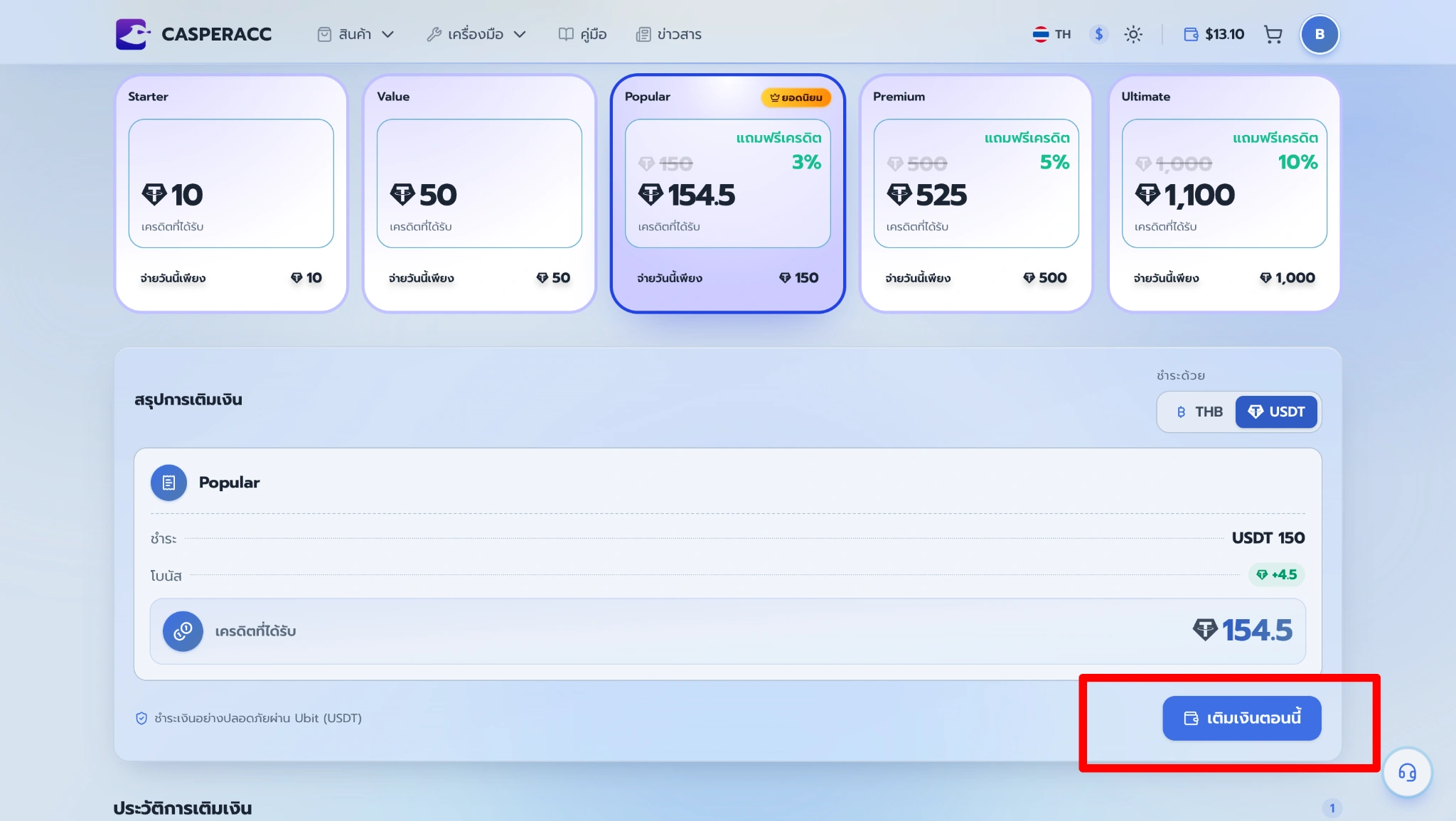
1.5 — Make the payment. After clicking Top-Up Now, you will be automatically redirected to the payment page.
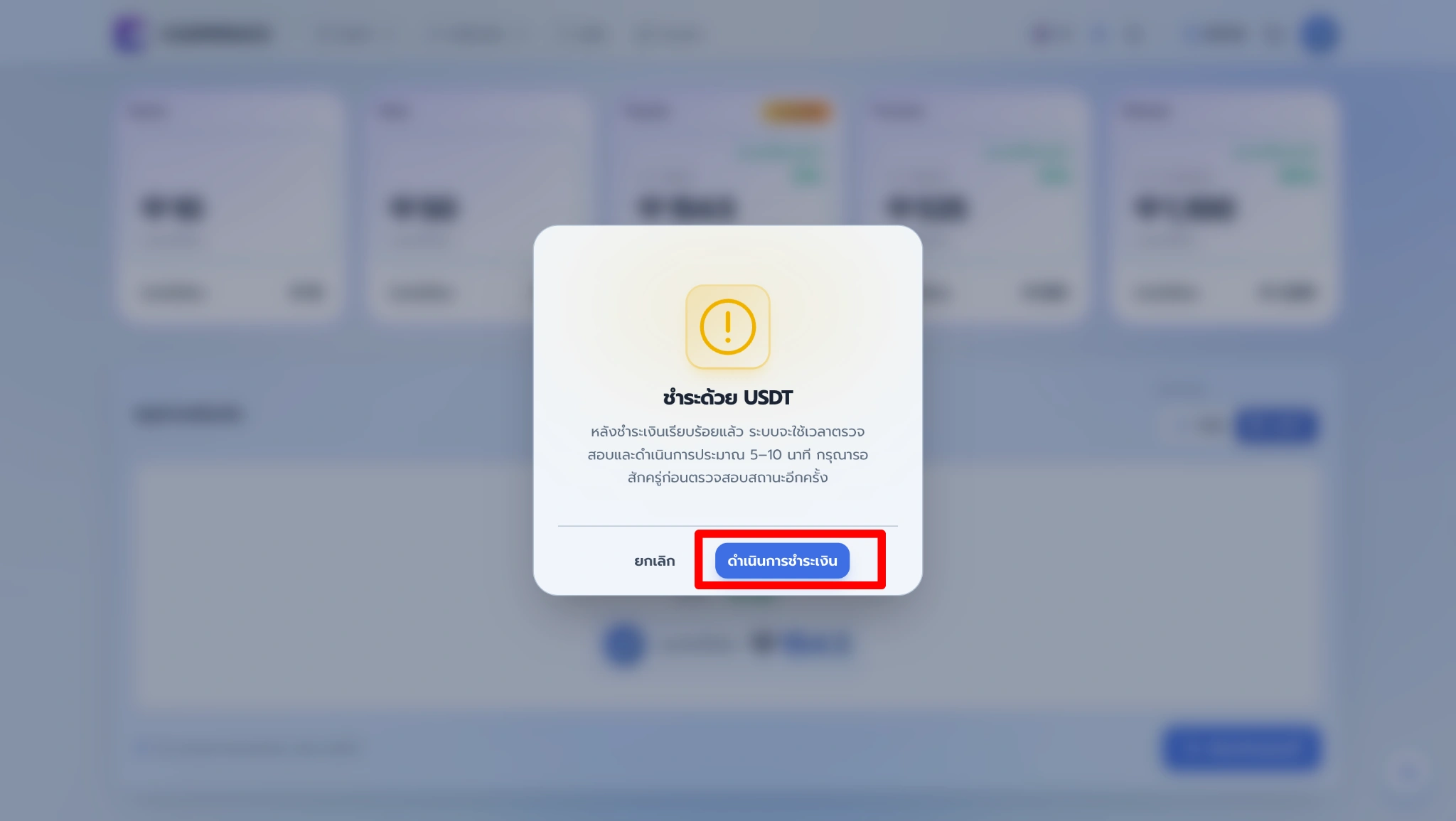
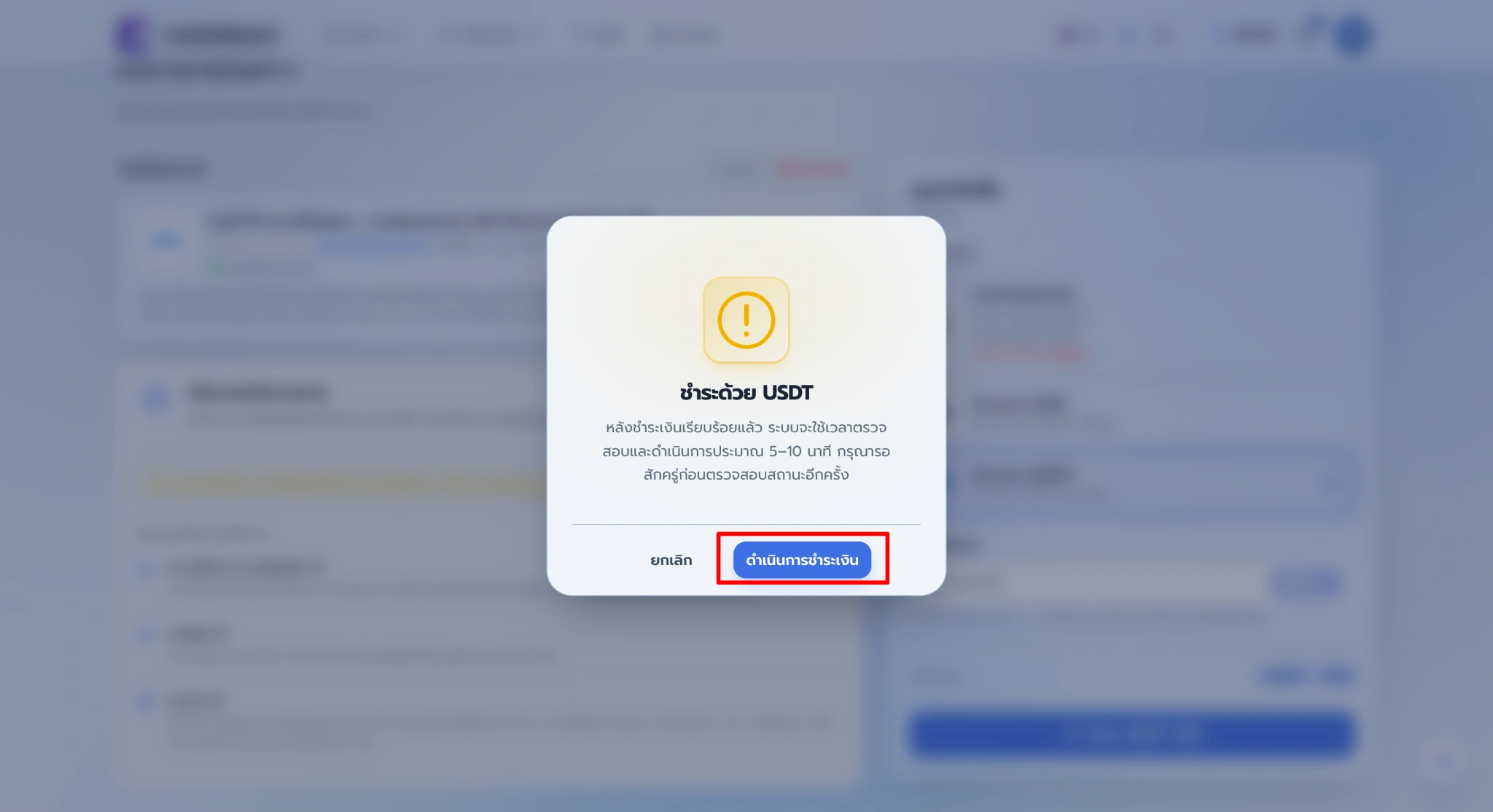
For payments in USDT
Click Continue to Payment to continue the payment process.
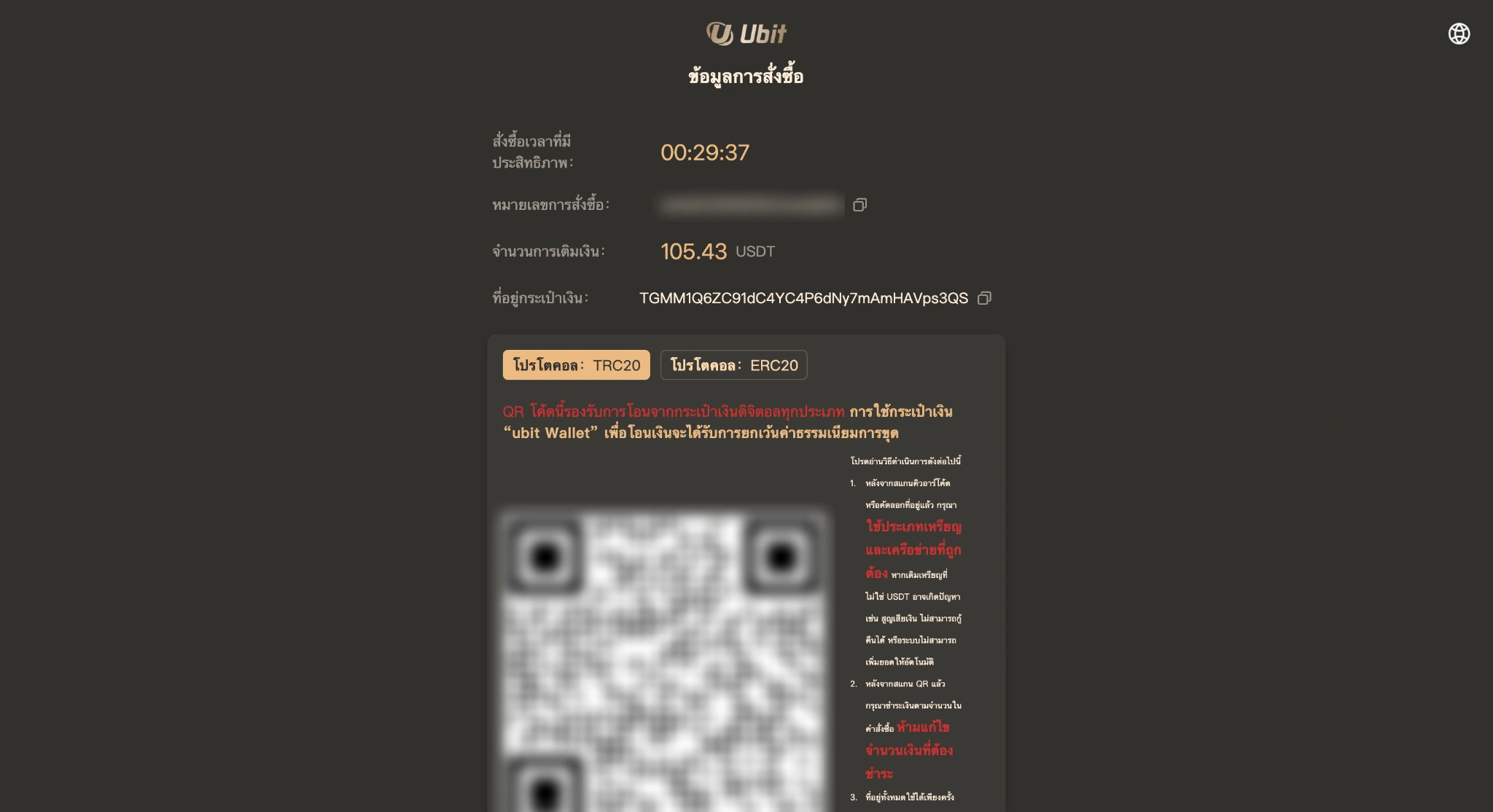
Scan the QR code and follow the on-screen instructions to complete the payment.
For payments in THB
You will be redirected to the payment page, where you can select your preferred payment method.
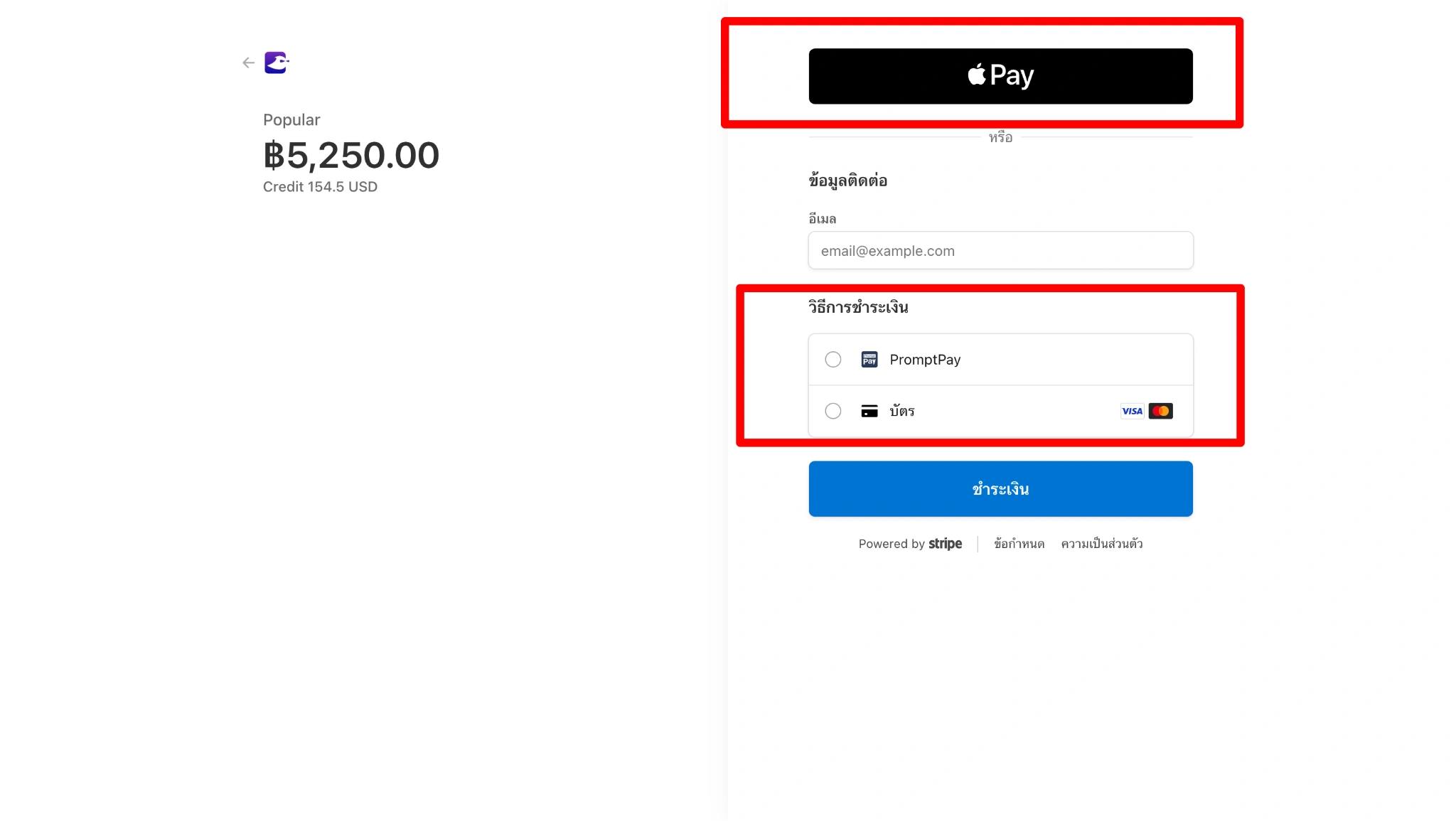
3 payment methods are available:
- Apple Pay
- PromptPay
- Visa and Mastercard
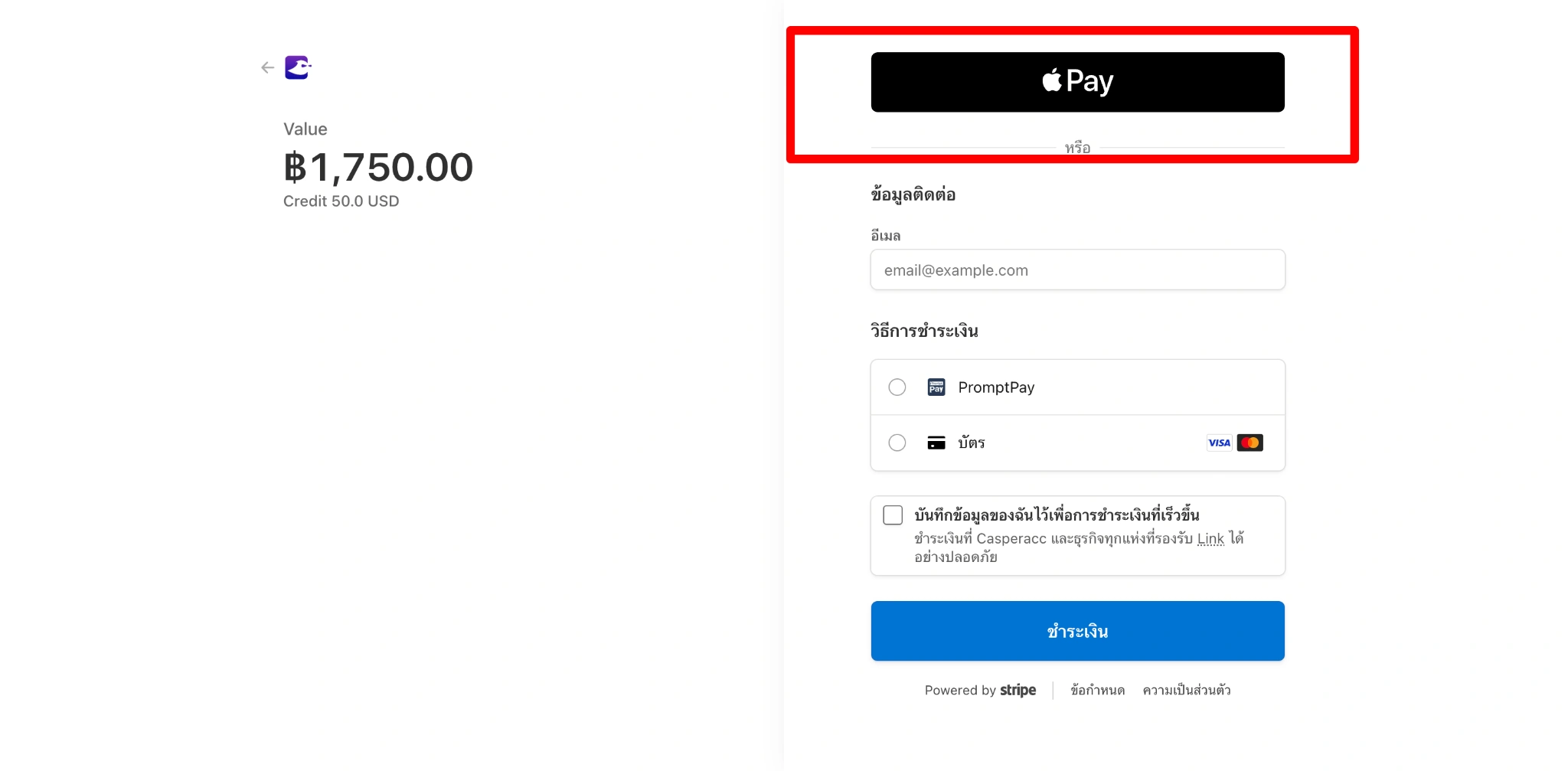
Apple Pay
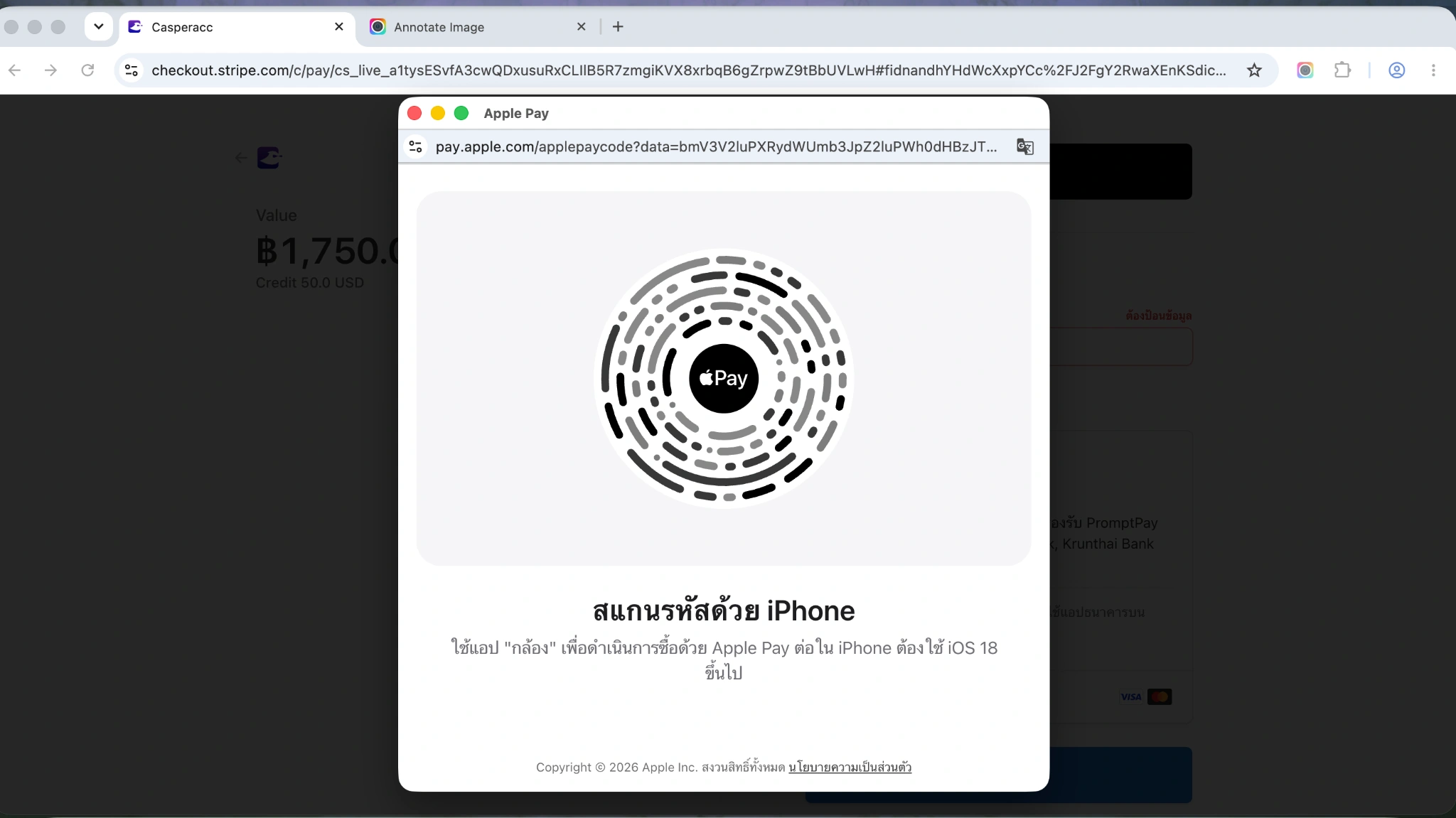
If you choose to pay with Apple Pay, click the Apple Pay button. A QR code will then appear on the screen.
Use your iPhone to scan the displayed QR code, then follow the on-screen instructions on your iPhone to confirm the payment.
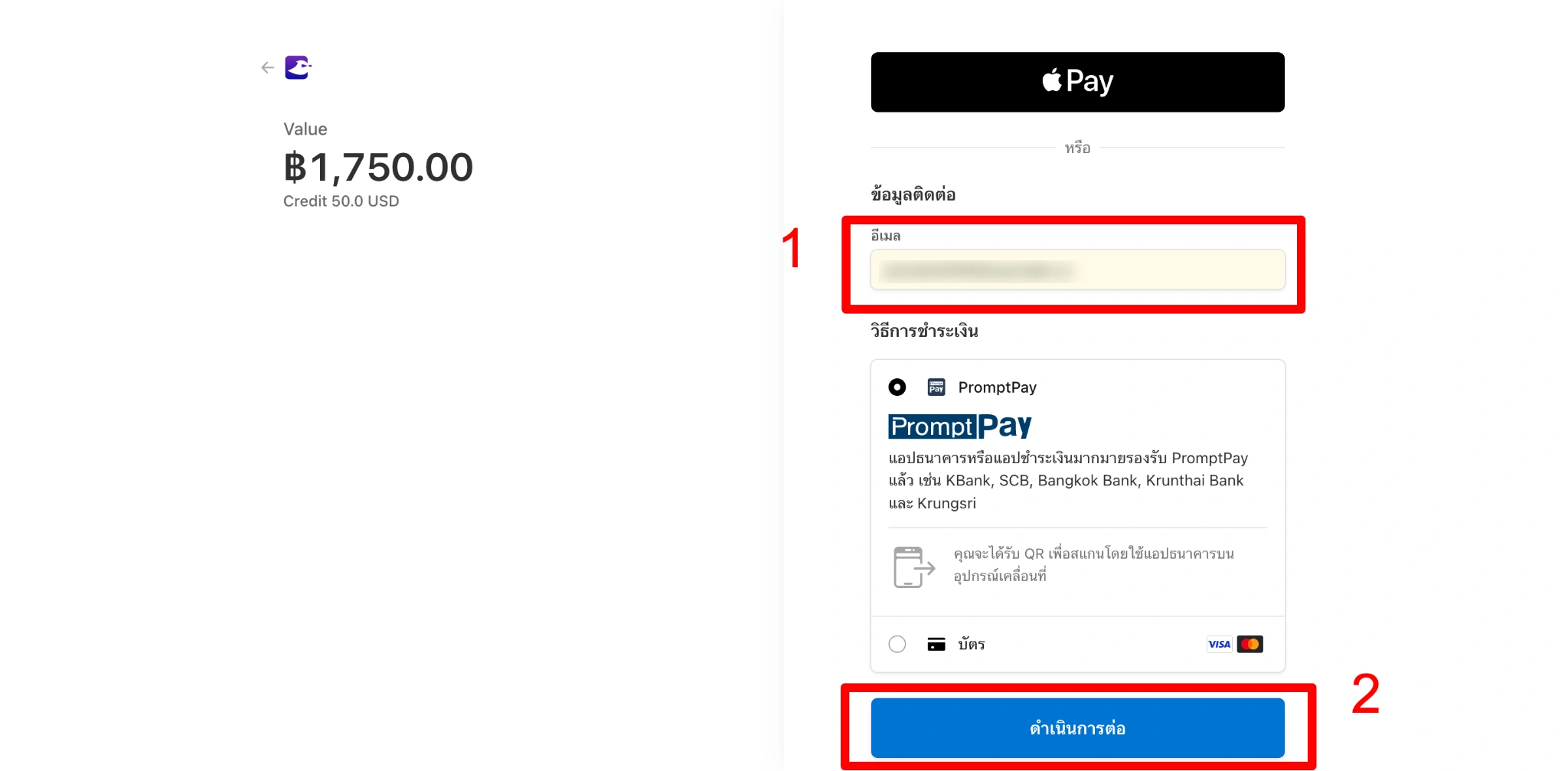
PromptPay
If you prefer to pay via PromptPay, select PromptPay, enter your email address, and click Continue. You will then be redirected to the QR code payment page.
Then, open your banking app or any app that supports PromptPay, scan the QR code, and follow the on-screen instructions to complete the payment.
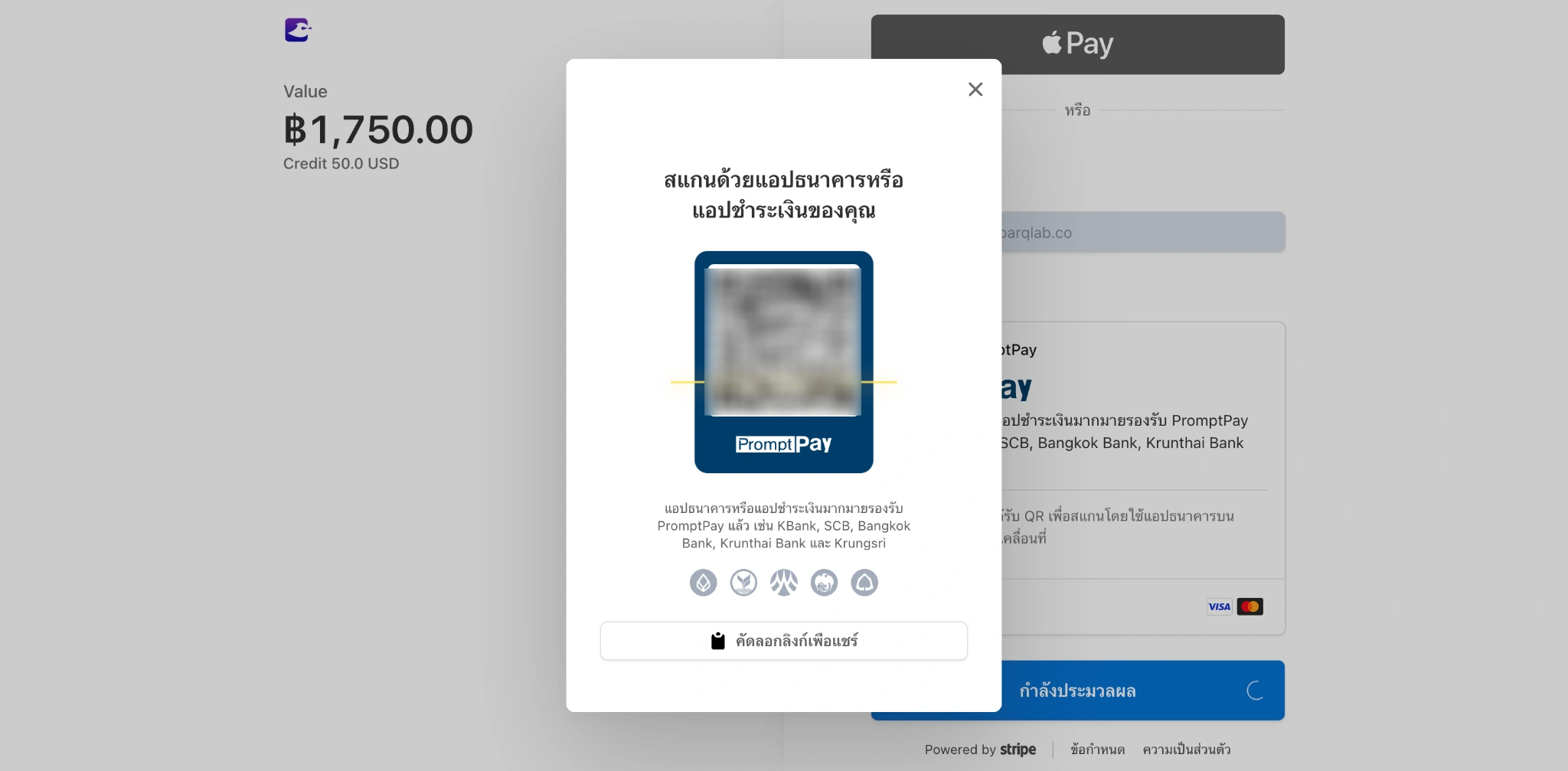
Visa/Mastercard
If you prefer to pay with a Visa or Mastercard, select Card and enter the required card details:
- Card number
- Expiration date
- CVC
- Cardholder's full name
- Country or region
Then, click Pay and follow the on-screen instructions to confirm and complete the payment.
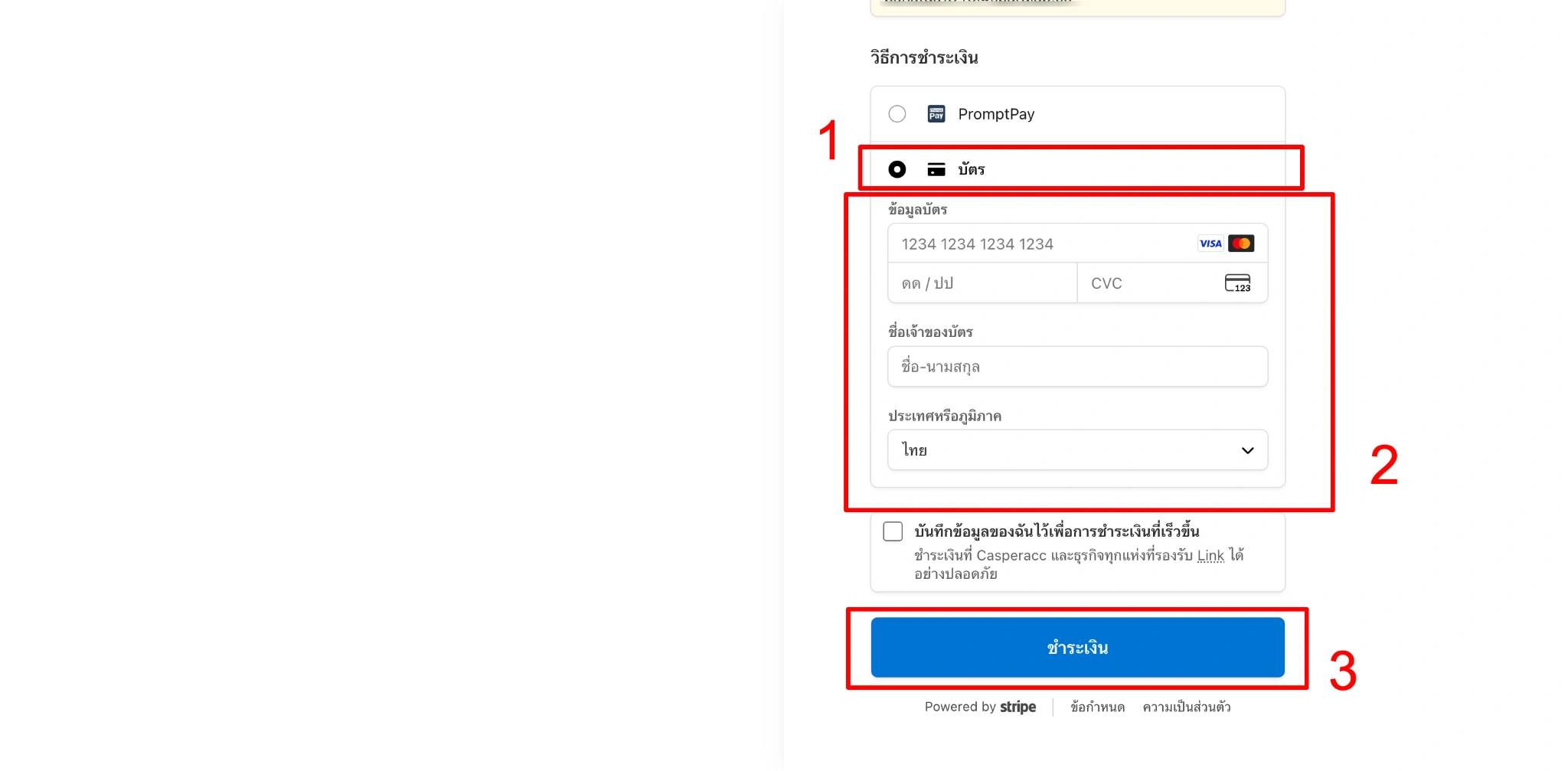
Once the payment is completed successfully, the credits will be automatically added to your wallet. You can then use your wallet credit to make purchases immediately.
Method 2: Pay in THB via Stripe
To use this method, select THB as your payment currency and click Pay. You will be redirected to the Stripe payment page. The payment process is the same as the THB wallet top-up process described in Method 1.
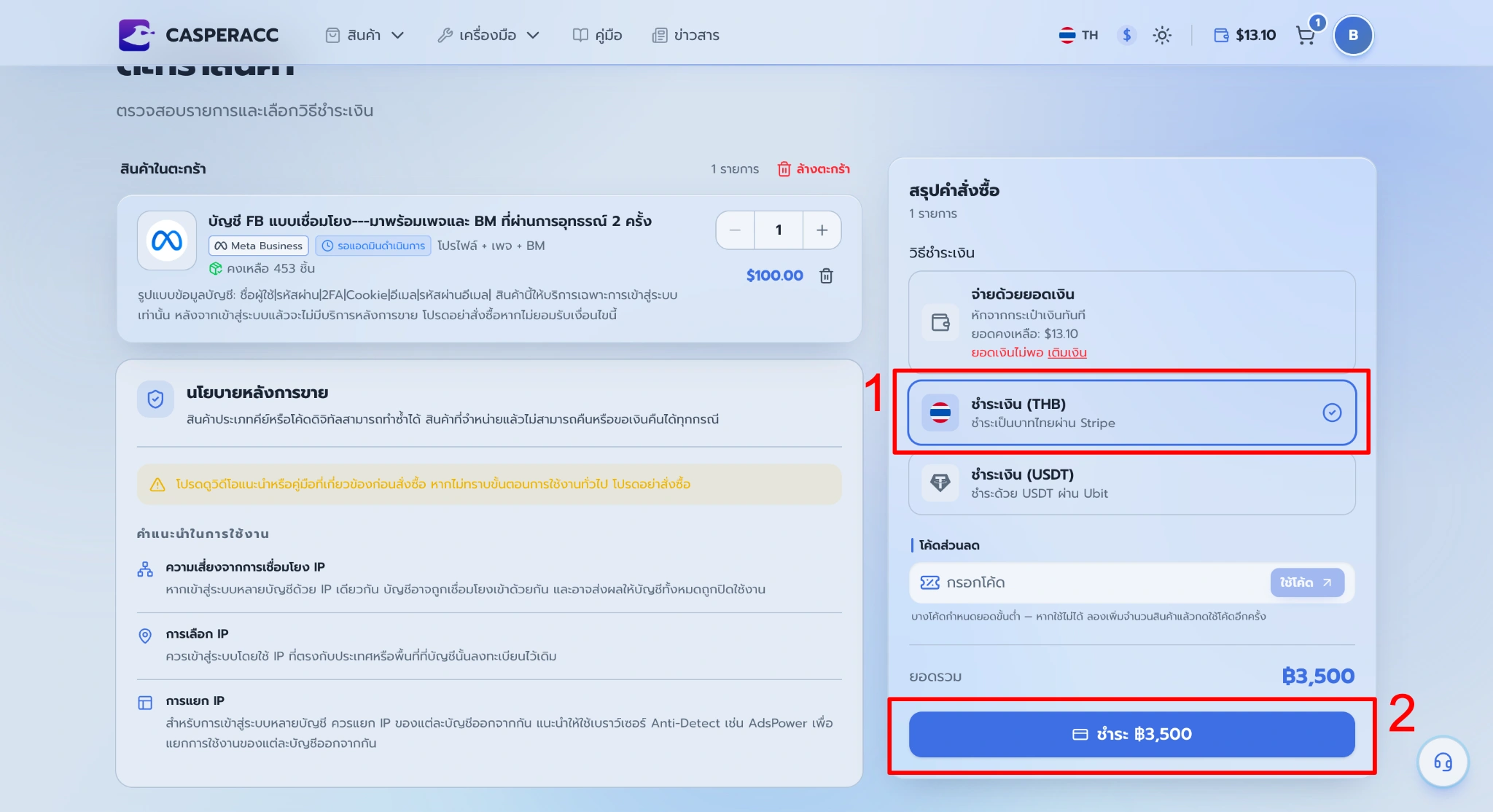
Method 3: Pay with USDT via Ubit
To use this method, select USDT as your payment currency and click Pay with USDT. You will then be redirected to the Ubit payment page.
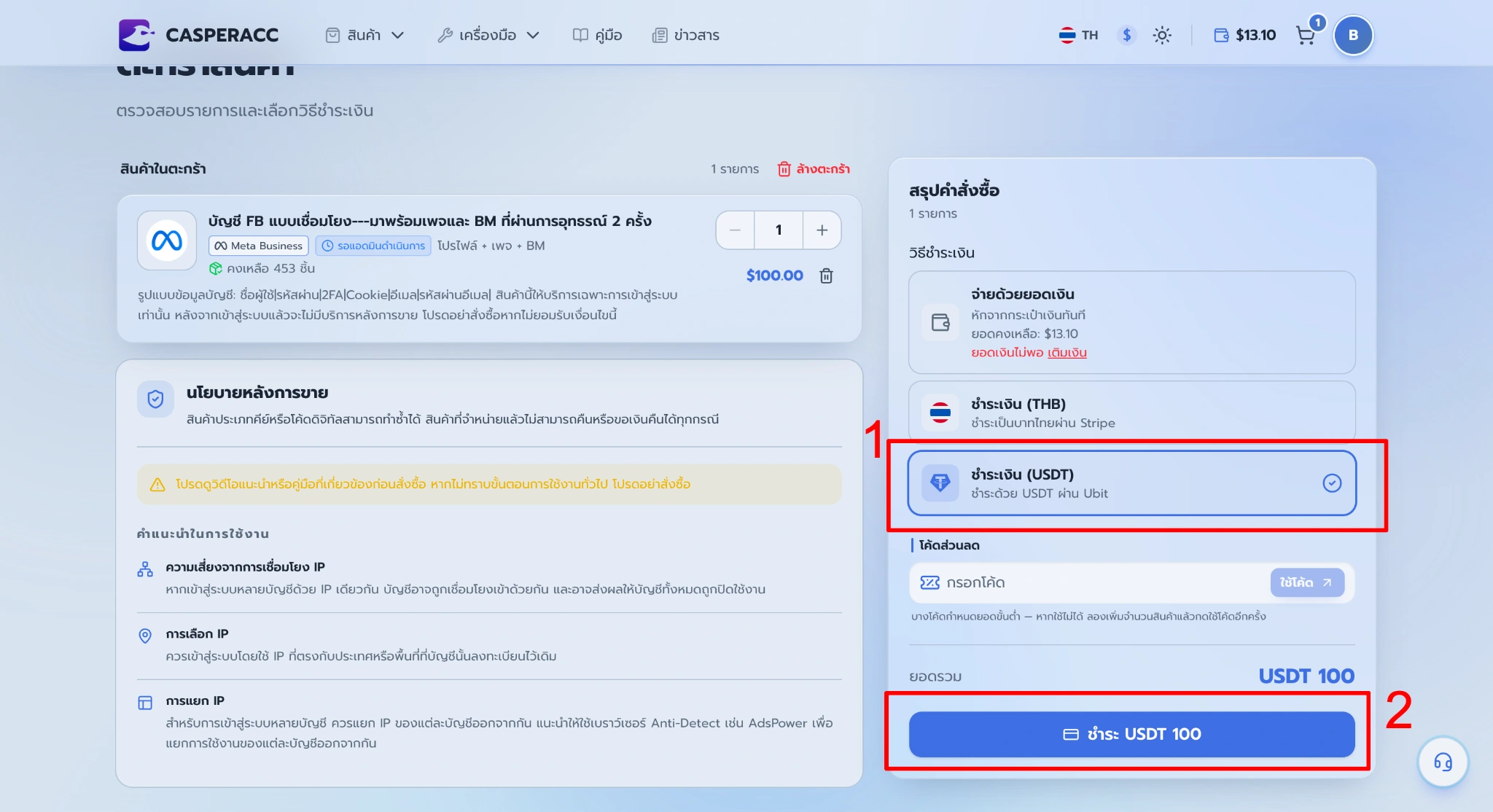
Click Proceed to Payment to continue with the payment process via Ubit.
Scan the QR code and follow the on-screen instructions to complete the payment.
Once the payment is complete, you can view your purchase details on the Orders page.